

Please click on a topic to expand or show more information.
Submitting your first self-service portal request or incident
-
Go to https://ardc.atlassian.net/servicedesk/customer/portals
-
Select the request you wish to send to ARDC. Complete the required fields as necessary.
IMPORTANT: Please enter a valid email address to the “Email confirmation to” field. This is where all updates and replies to your request will be sent to.
-
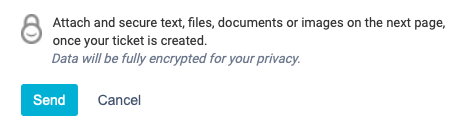
When ready to submit, click Send at the end of the page.
-
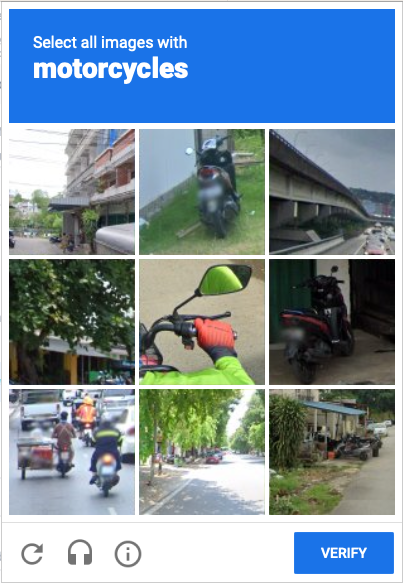
You will be asked to verify or confirm that you are a valid user by completing the reCAPTCHA image identification window similar to the one below:
-
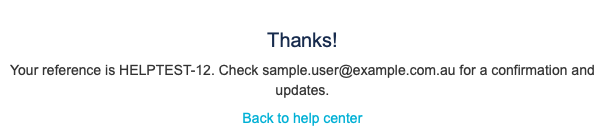
You will get a screen confirmation with your issue reference number when your request was successfully submitted.
Creating your self-service portal account
-
You will also receive an email with the link to view the recently submitted request (eg View HELPTEST-12).
-
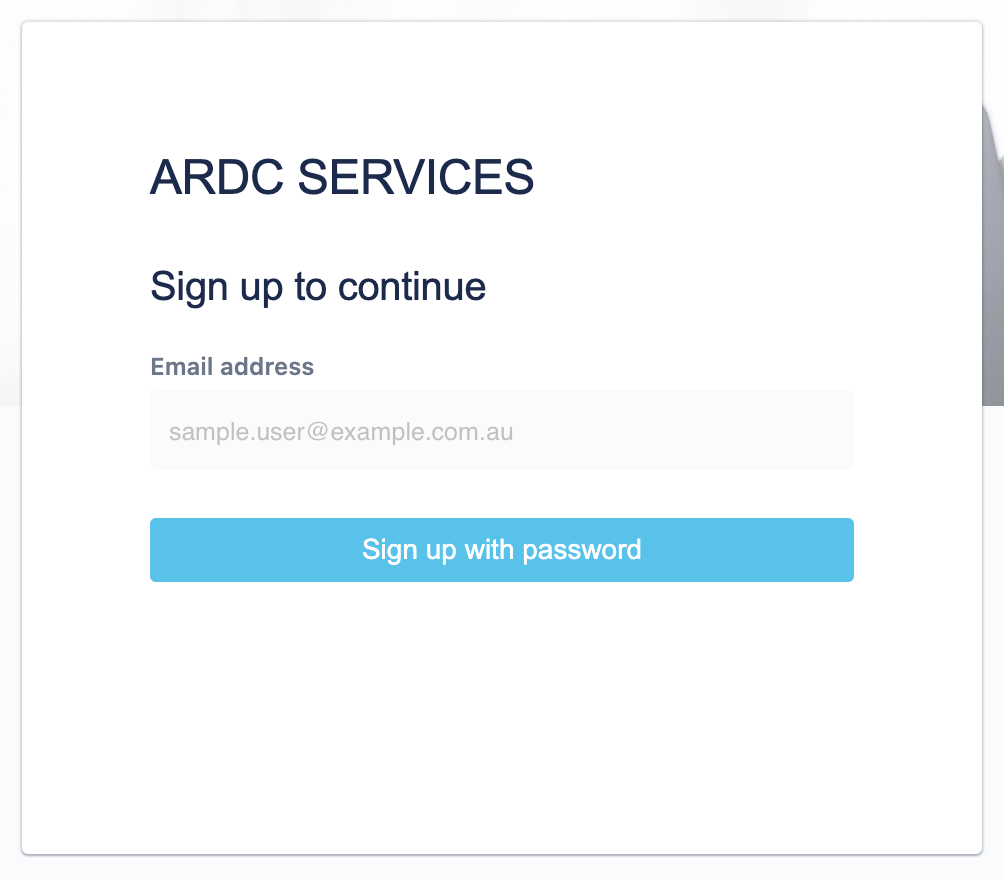
Click on the ‘Sign up with password’ button.
-
The next window will be displayed which will ask you to check your email.
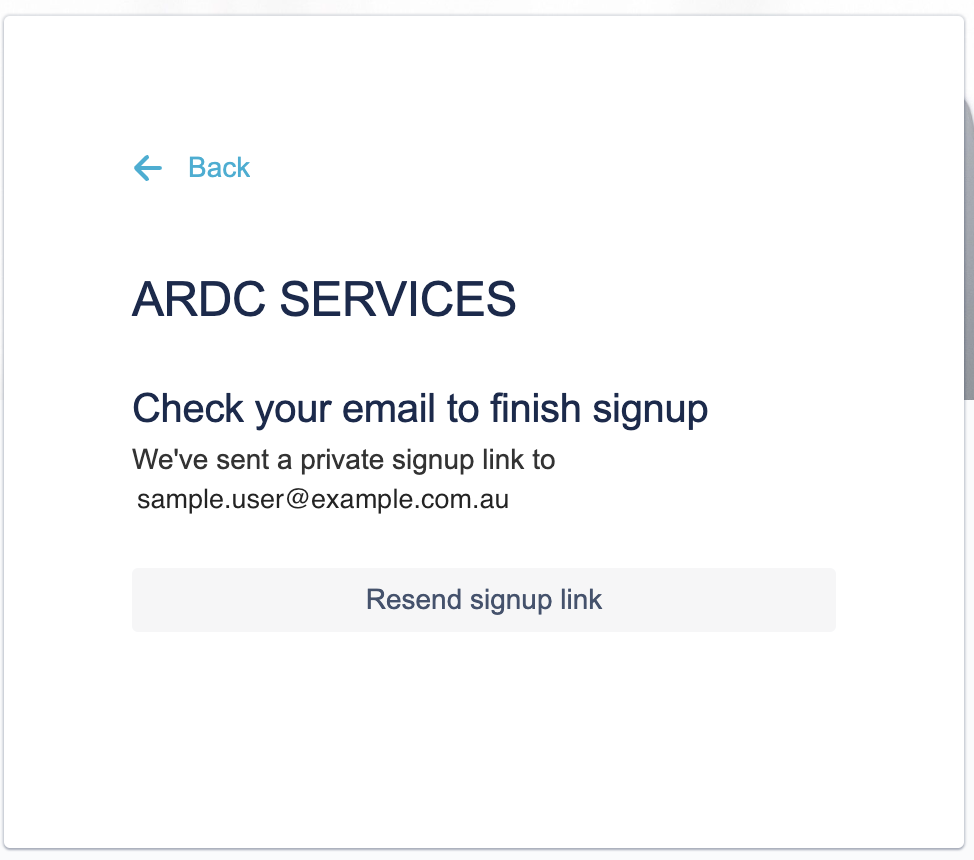
-
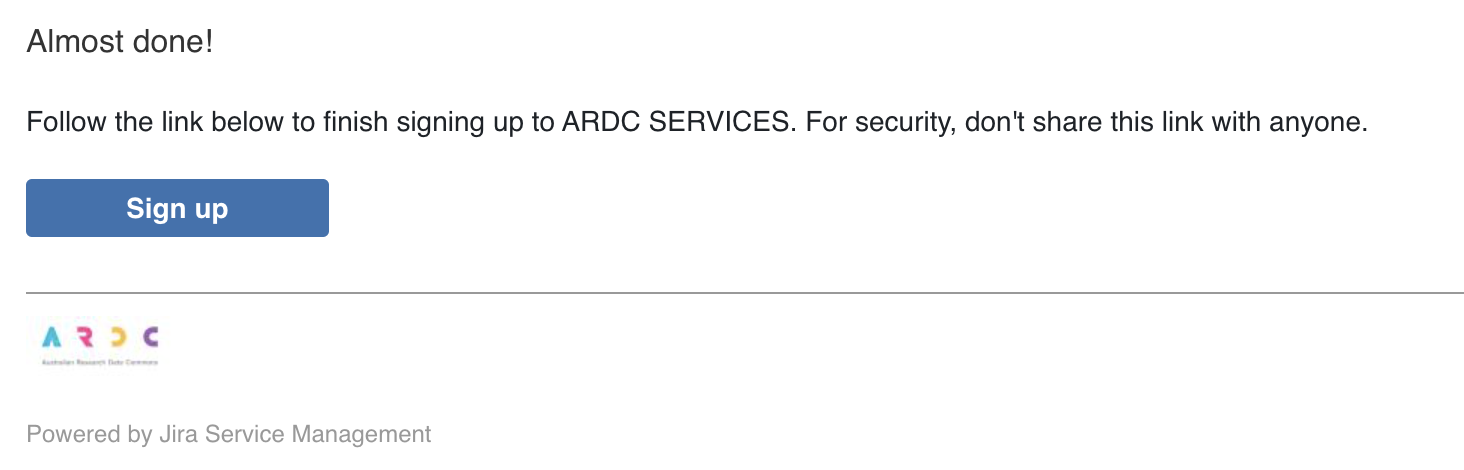
Another email with the subject “Finish signing up to ARDC SERVICES” will be sent to your mailbox. Click on the ‘Sign up’ button to set your password.
-
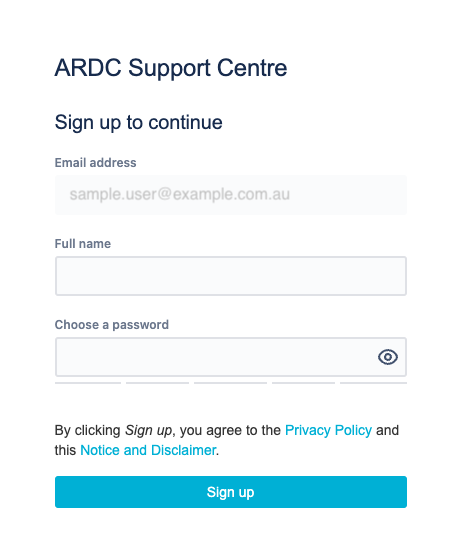
Enter your full name and your chosen password then click ‘Sign up’.
-
Once logged in, you will now be able to view and/or manage your profile and your submitted request(s) will accessible on the right hand corner of the screen, next to your user profile.

For any queries or comments, or if the above instruction did not work, please email services@ardc.edu.au.
Changing your display name or your password
Change your display name:
-
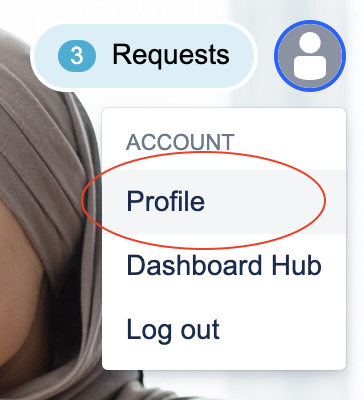
Once logged in, go to your user profile
-
Change your name as to how you would want it to be displayed in the portal.
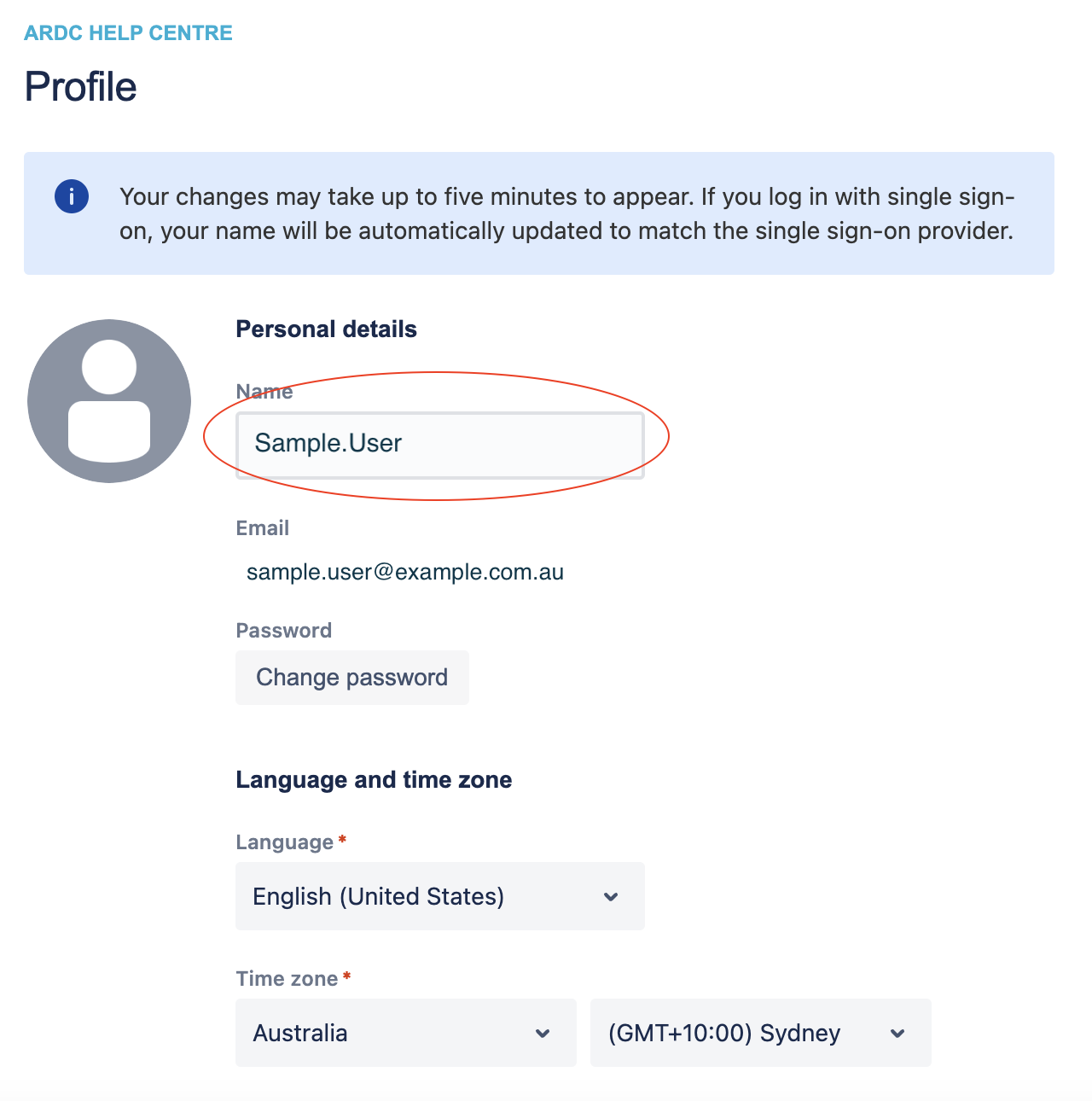
-
Click ‘Save’ when done.

You can also change your password, time zone and language on this page.
Change your password:
-
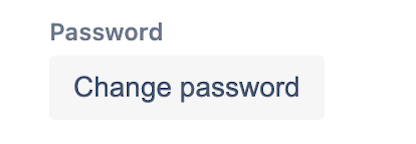
On the same profile page as above, click on the ‘Change password’ button
-
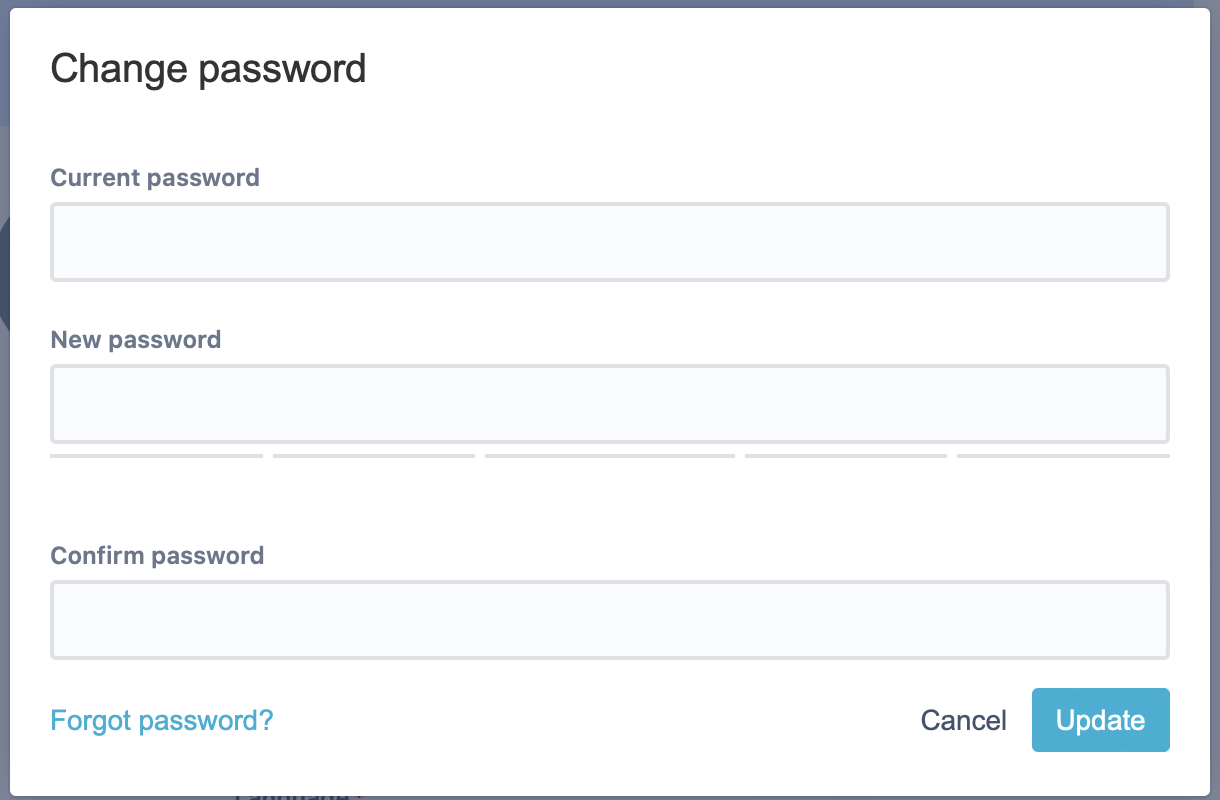
You will be required to enter your current password.
-
Enter your new password then click ‘Update’
Checking the status of your requests
You will be notified via email if and when there are activities or updates on your issues.
If you want to check the status of your request, do the following:
-
Log in the Self-service Portal with your account
-
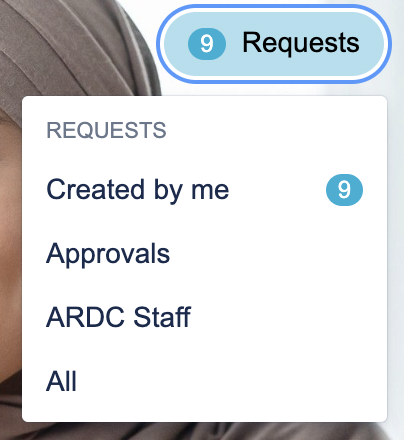
Once logged in, click the ‘Requests’ button next to your user icon on the top right corner of the portal as per screenshot below.
-
Click on ‘Created by me’ to view all the issues you raised.
-
If you were added as an approver of an issue, click ‘Approvals’ filters to view them.
-
If there are issues shared with you by someone within the organisation, these issues will be listed under your organisation name (NOTE that this is initially available only to ARDC staff)
-
The numbers on the side of each facet or filter indicate the count of issues
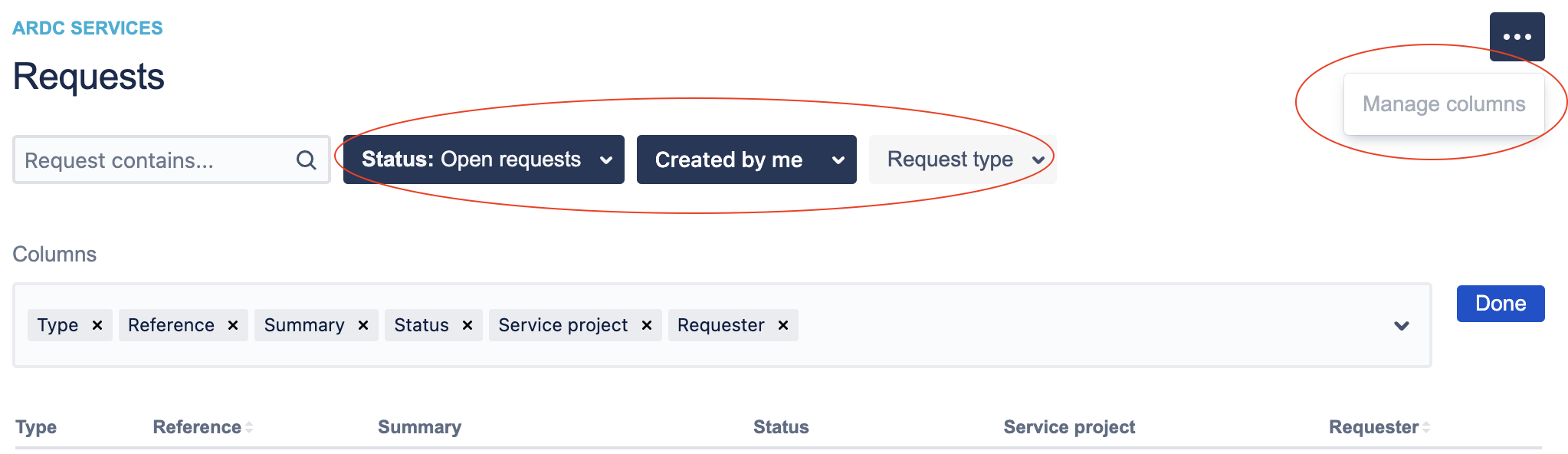
Use the available filters/facets to refine your search results or display. Click on the ellipsis (…) then ‘Manage columns’ to select more columns to display.
Searching for information (documentation or forms)
On the home page of the Self-service portal, a search box allows you to search for information about the ARDC services.
-
In the Search box, type your query or the topic you are interested in.

-
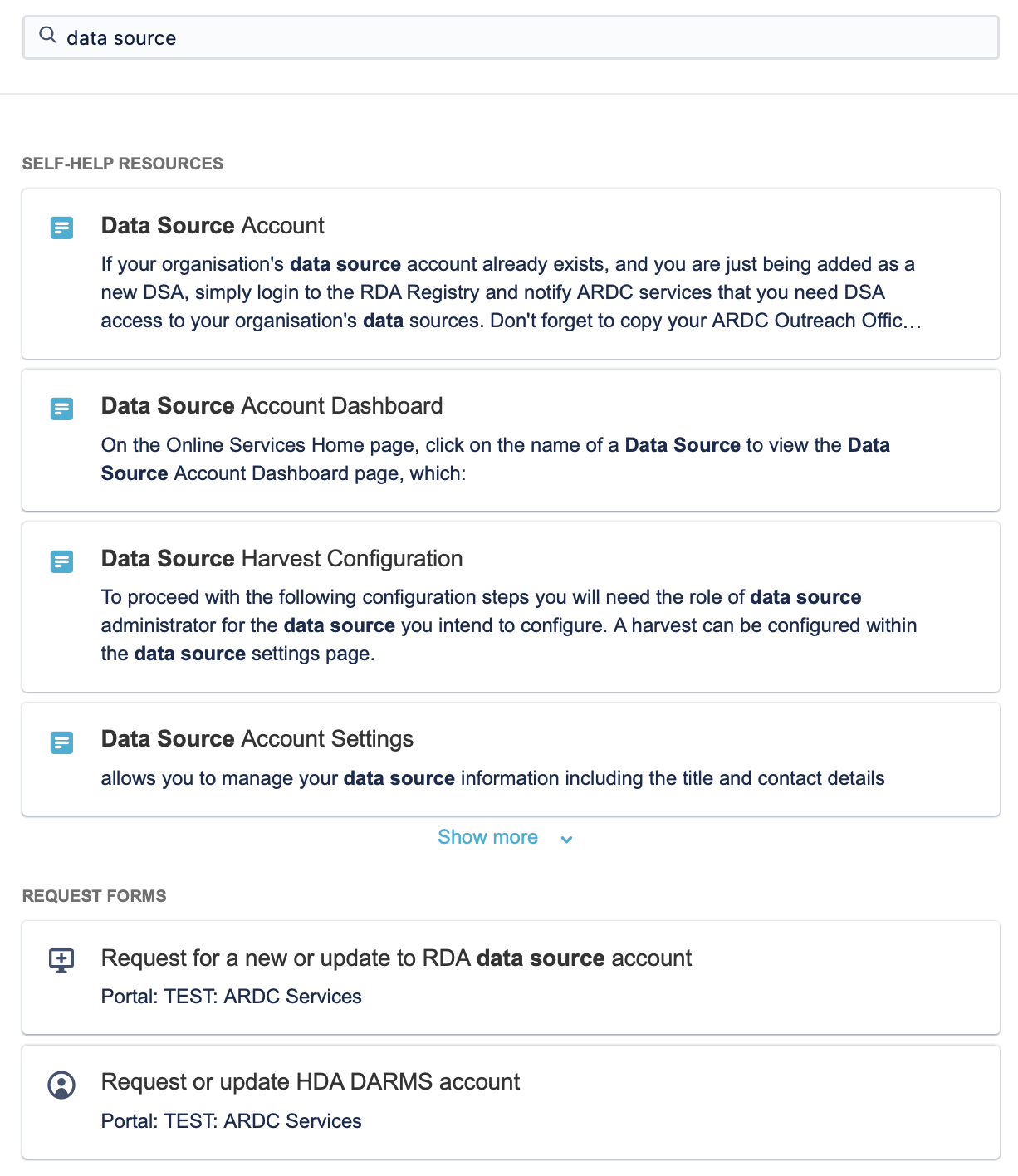
As you type, suggested articles or documentation, forms or external resources will be displayed in real time as per screenshot below.
-
Self-help resources: these are pages that are available on the ARDC Services User Guides
-
Request forms: these are the suggested forms that may be relevant to your query. Clicking any of the links will directly open the form for you to fill out.
Related articles
Can't find what you need?
Send us an e-mail at services@ardc.edu.au for assistance.